
01
Open the controls
Press and hold the screen, or double-tap if you have chosen that gesture.
Home · Customising · On-screen controls
Set it on the screen
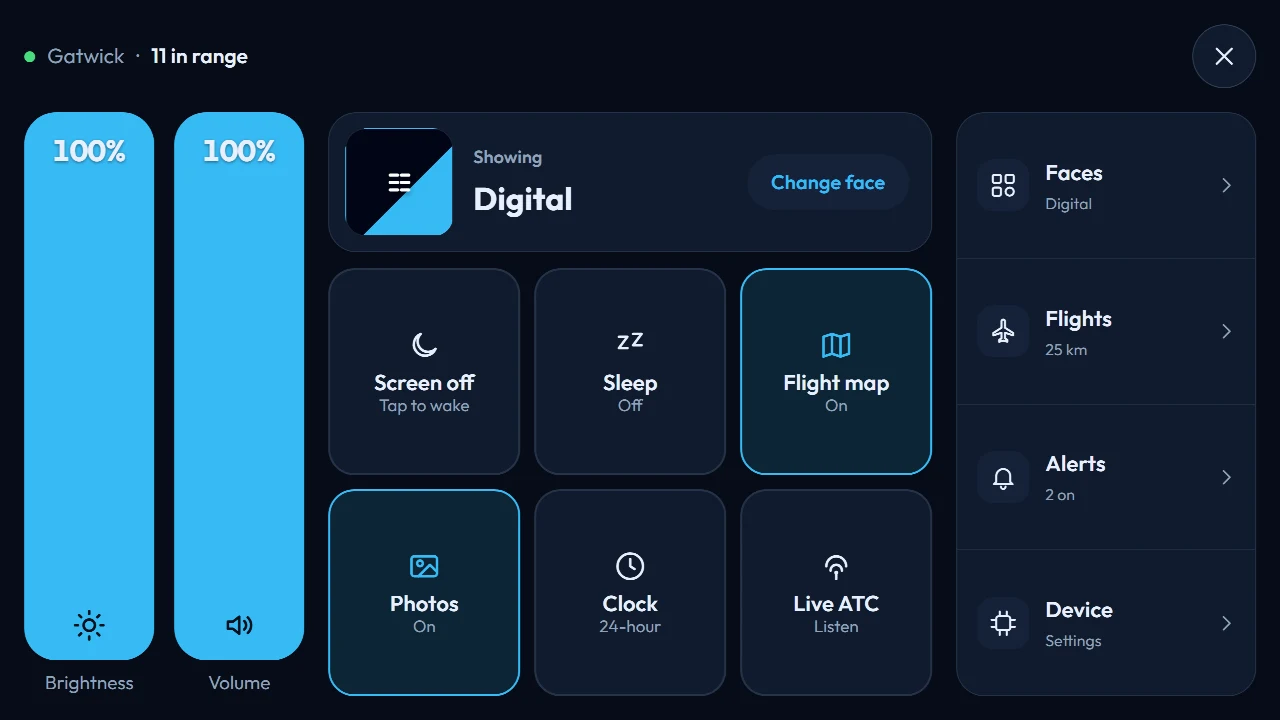
Press and hold the screen, or double-tap if you prefer that, and the controls open on top of what is already showing. No phone, no laptop, no extra app. Change something and it saves on its own. Mini, Altitude and Horizon all work this way. Connect, on a television or monitor, now takes a mouse.
How it works
The face stays on screen. The controls sit on top, so you can see the result as you go.
01
Press and hold the screen, or double-tap if you have chosen that gesture.
02
Drag brightness or volume, flip a switch, or open Faces, Flights, Alerts or Device. Every change saves on its own.
03
Tap Back, or leave it alone. After a minute of quiet the main screen comes back by itself.
The first screen
Drag them until the room feels right. Around them are the switches you will actually use day to day.
Drag them until the room feels right.
FIRST
Turn the screen off, then tap it to wake it again.
WAKE
Rest overnight fully off, dimmed, or still showing the time.
NIGHT
Switch the flight map and aircraft photos on or off.
FACE
Flip between 12-hour and 24-hour time.
CLOCK
Listen to live air traffic control at supported airports. UK airports are not included, because of dated UK law.
RADIO
No menu needed
There is also a short gestures page under Device, so you can remind yourself what a swipe or a tap does.
Opens the controls. Prefer double-tap? Switch to that instead.
Changes the face.
Changes how far away flights are picked up.
Follows that aircraft.
Opens the flight tracker.
Opens Wi-Fi settings when the connection drops.
Faces
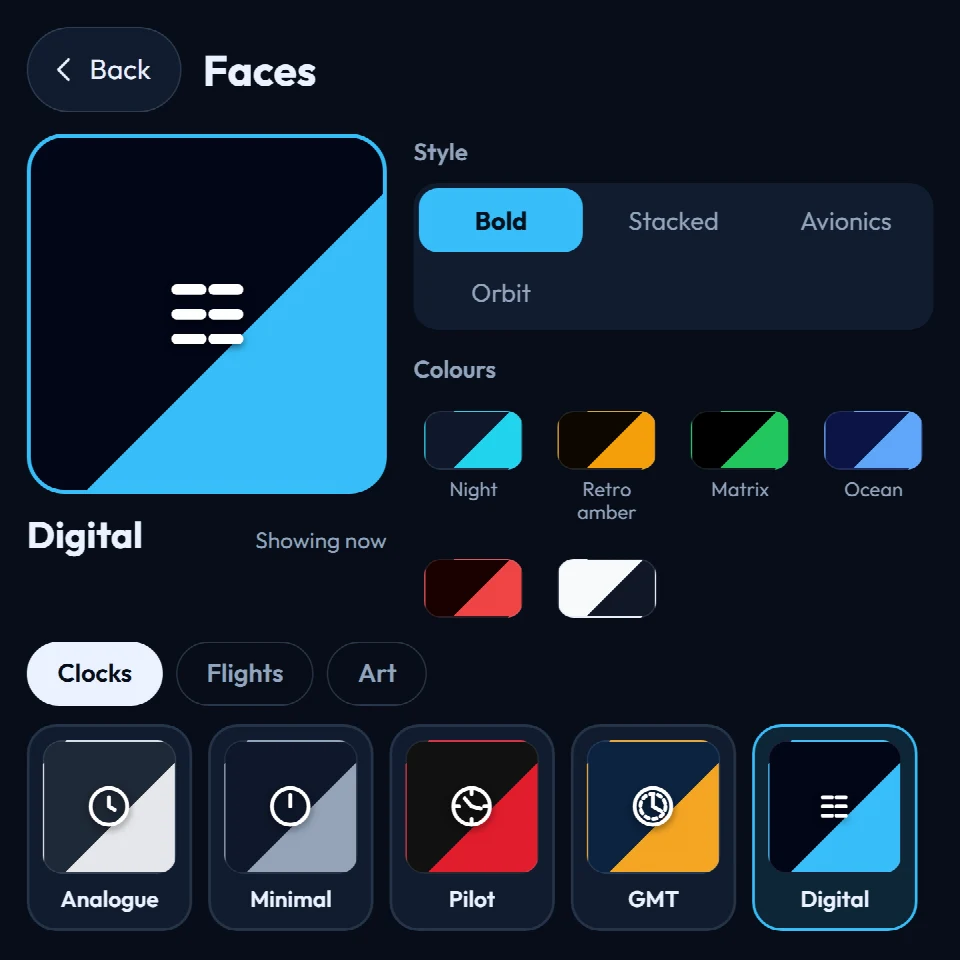
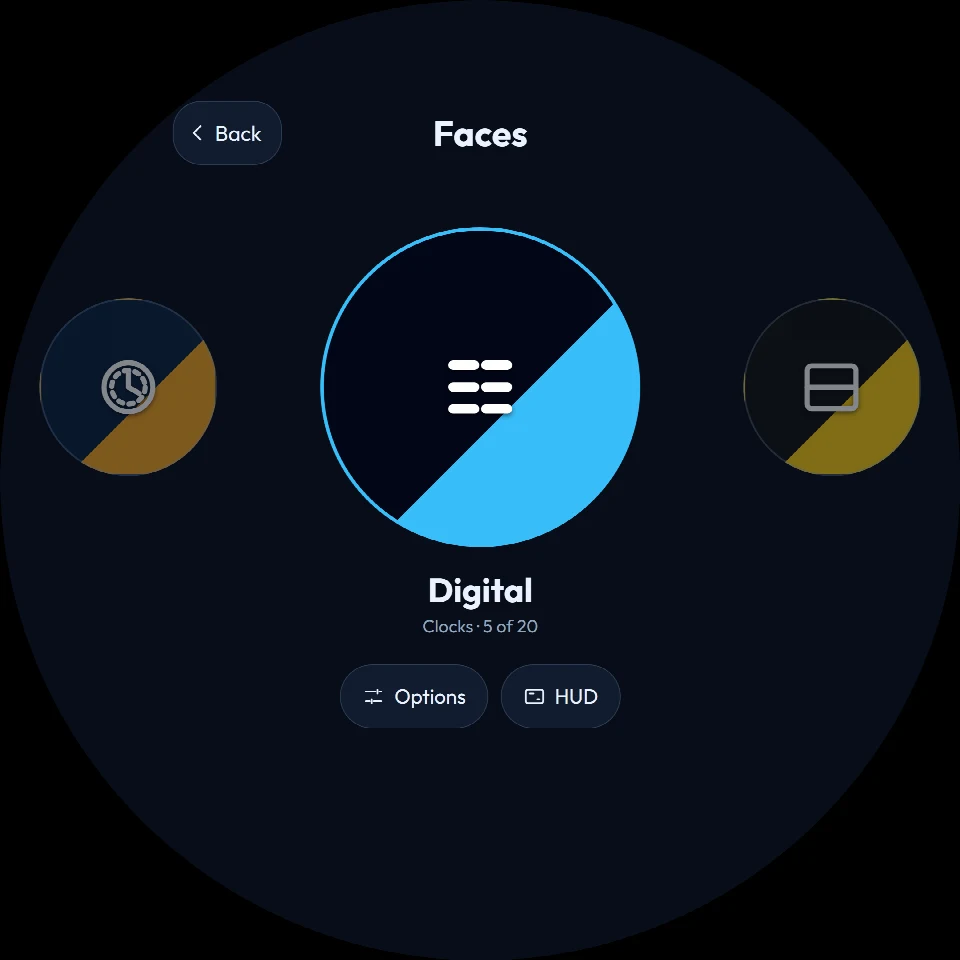
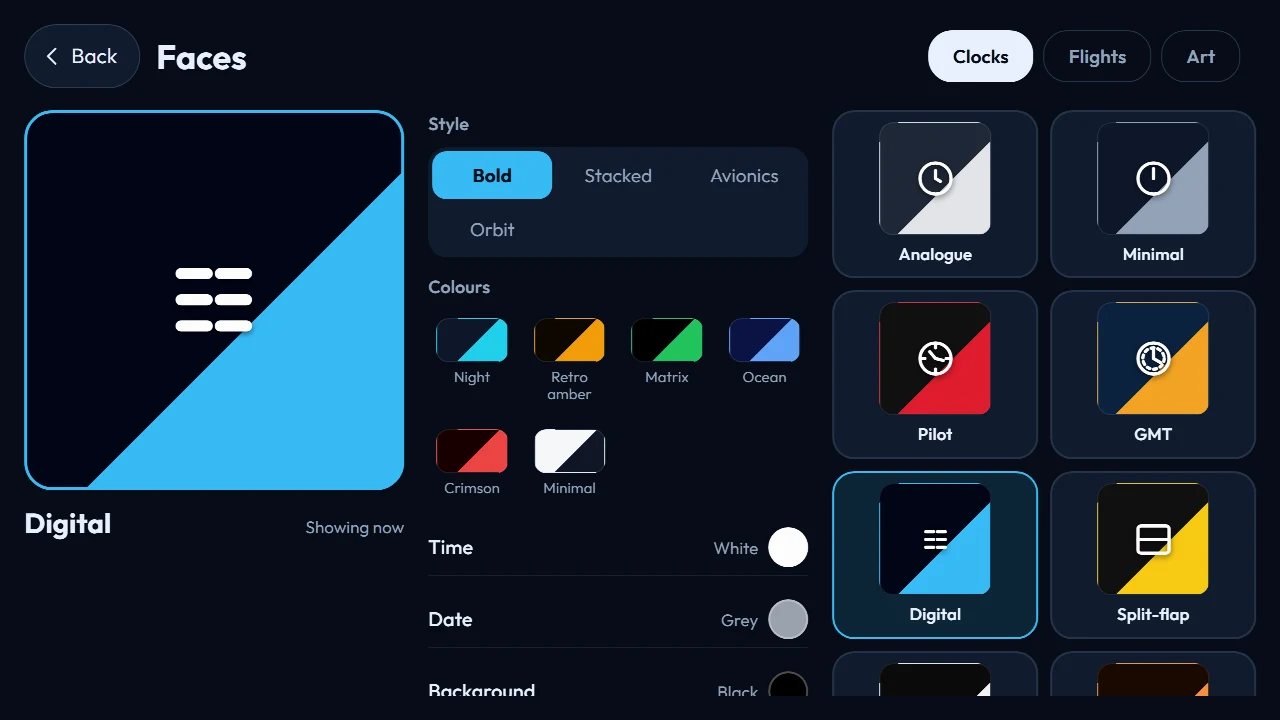
Time, flight, and art faces sit in three groups, and you can flick through them until one feels like yours. Analogue, digital, word, nixie, radar, boarding pass, poster, arcade: pick one and it is on the screen straight away.
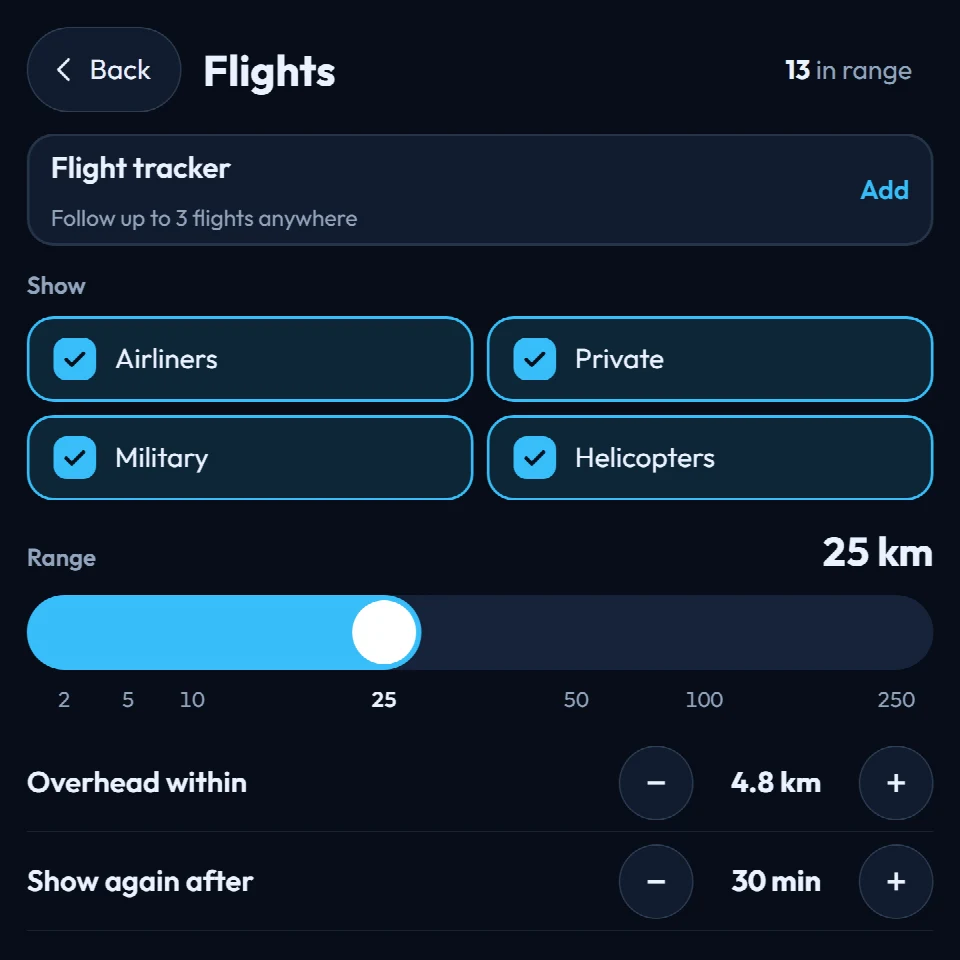
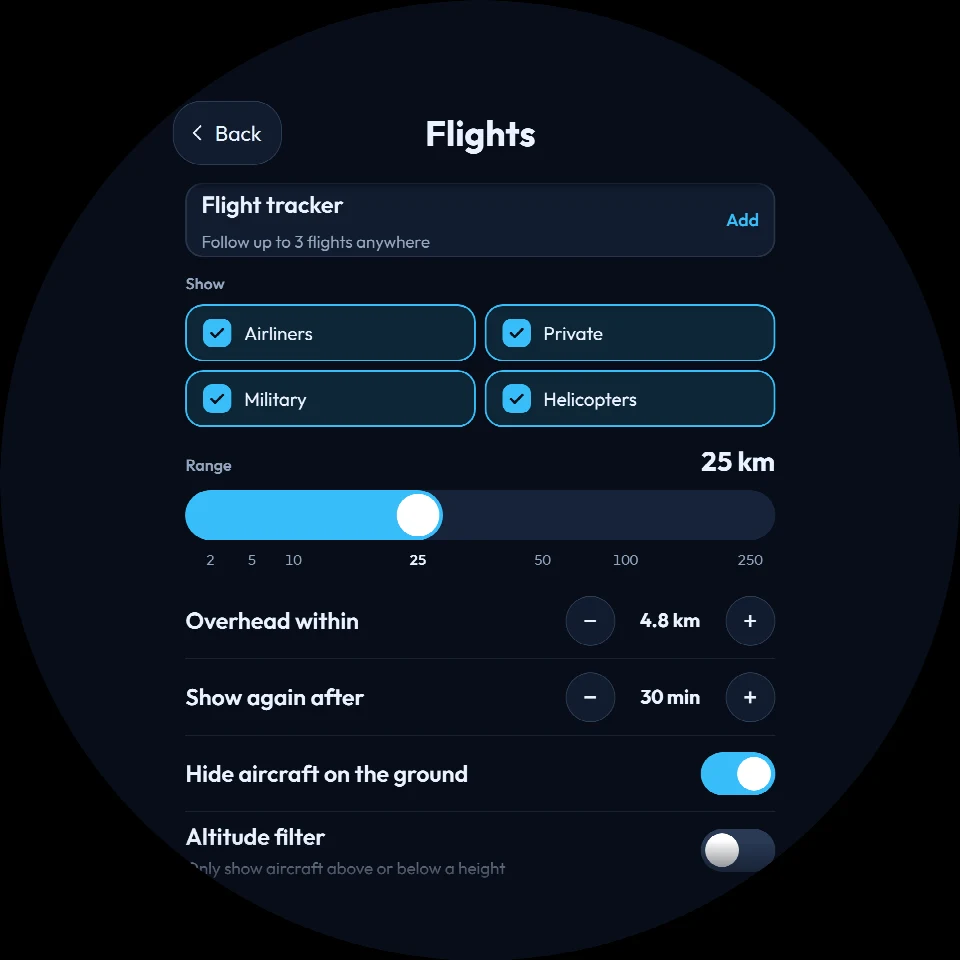
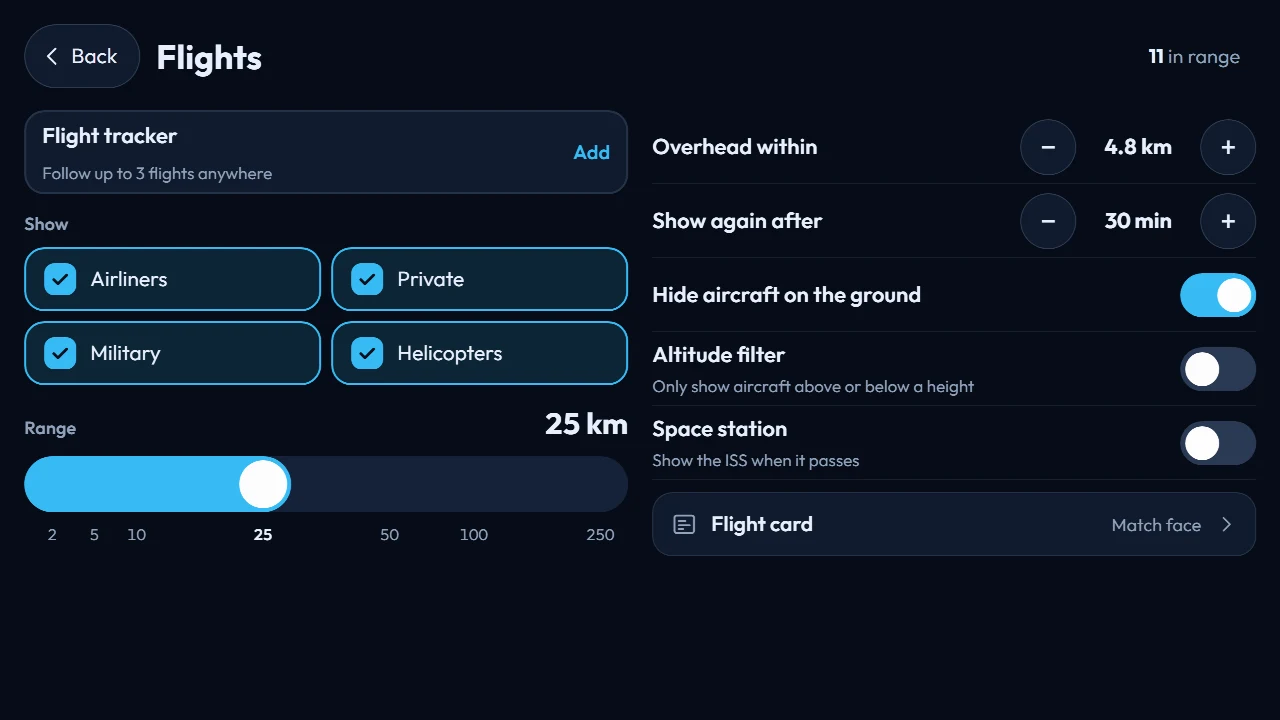
Flights
The screen that appears when something interesting is nearby. Pick a style, show or hide airline logos and photos, turn the little map on (night, day, or high contrast), and let the airline's own colours take over the screen if you want.
Not only the ones passing your window. Add up to three by flight number, callsign, or registration and each one stays on every face until you take it off. A small Tracker HUD can sit on the screen and show all of them at once. After landing, it can drop off the list after a few minutes, or stay until you say so.
HUD and Tracker HUD
Both bars sit over whichever face you have chosen, so you do not have to give up the look you like to see the weather or your flights. On Altitude they curve with the round screen.
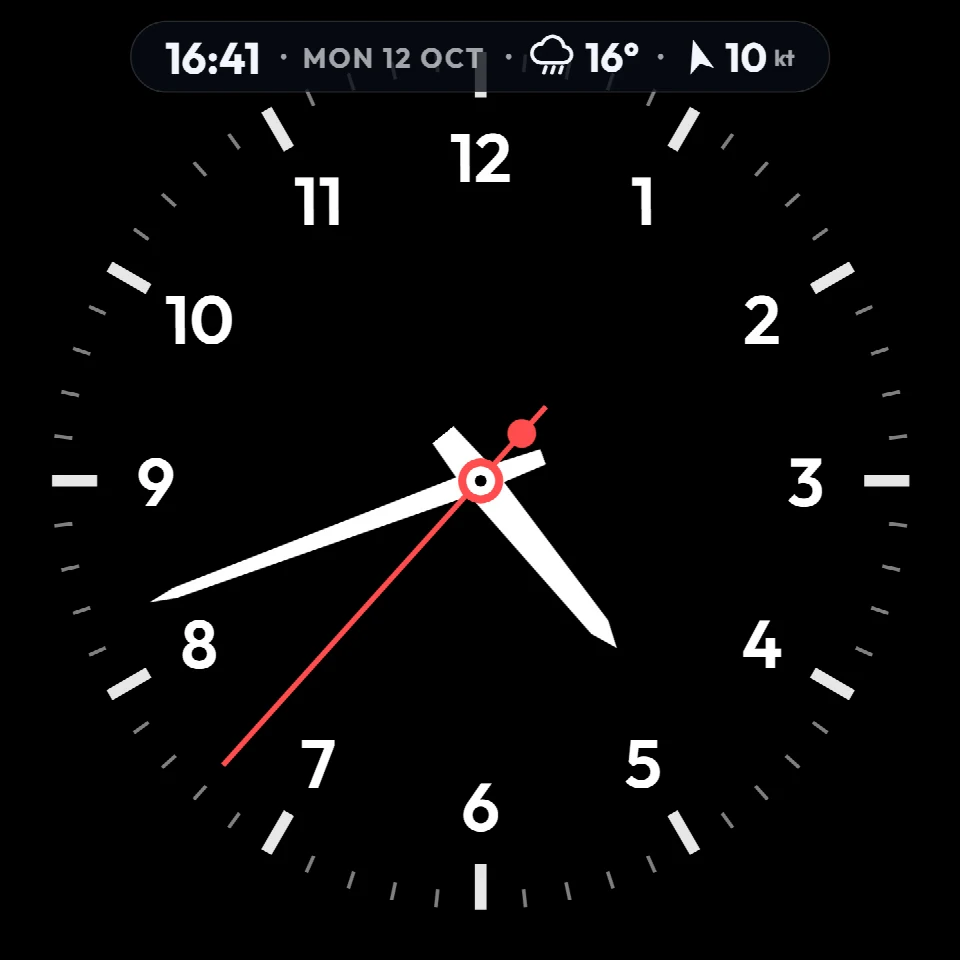
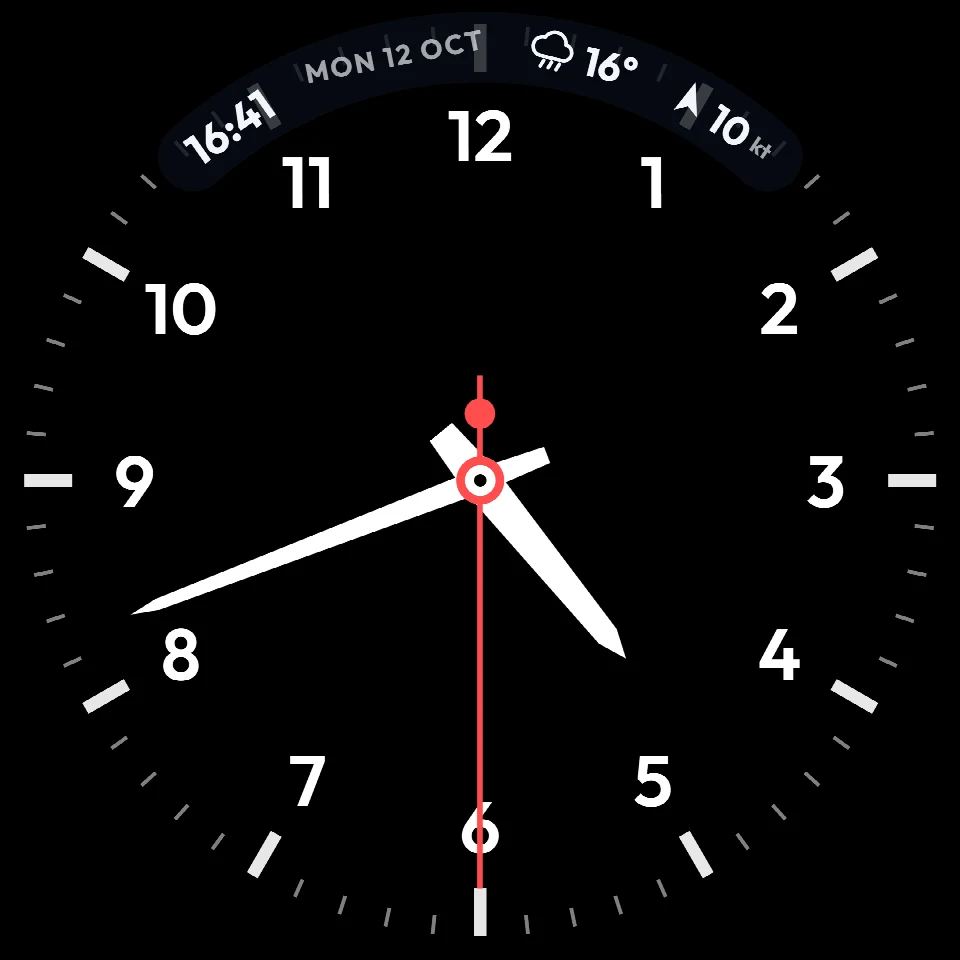
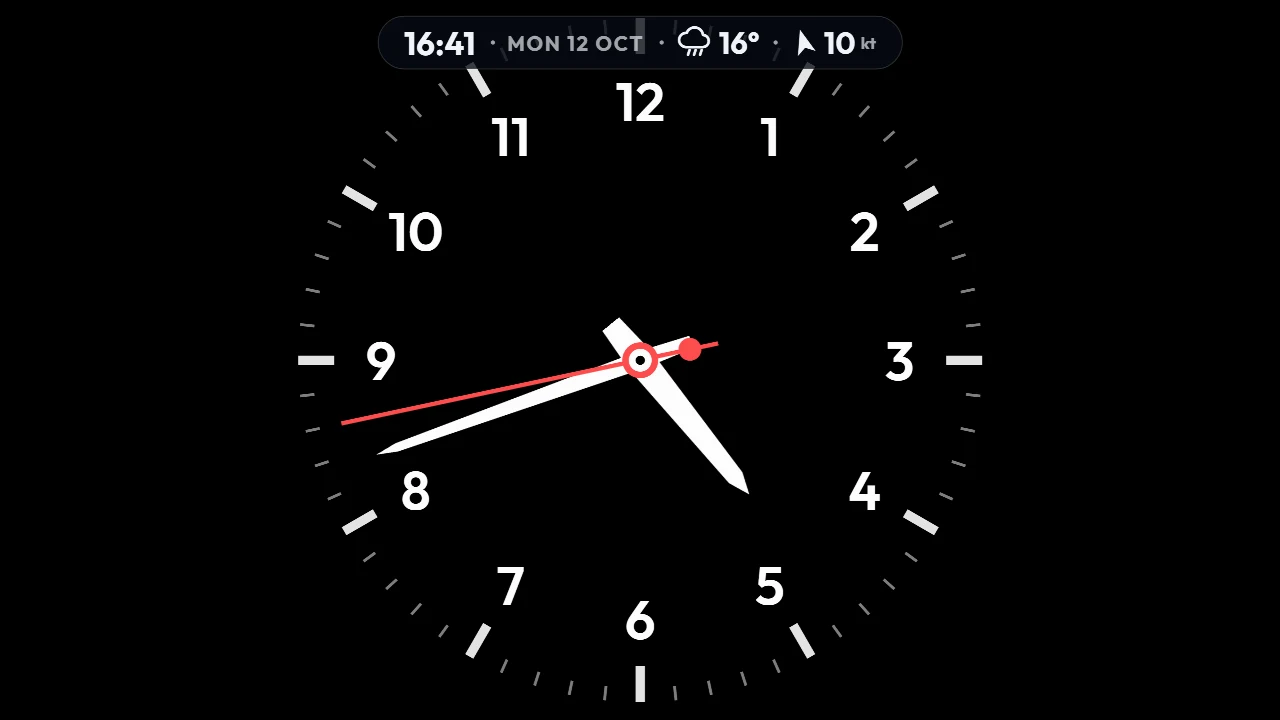
A slim info bar across the top. Pick what goes in it: the time, date, weather, wind, a nearby airport, humidity, the moon, or how many aircraft are in range. Dark or light, small or large. Set it under Faces.
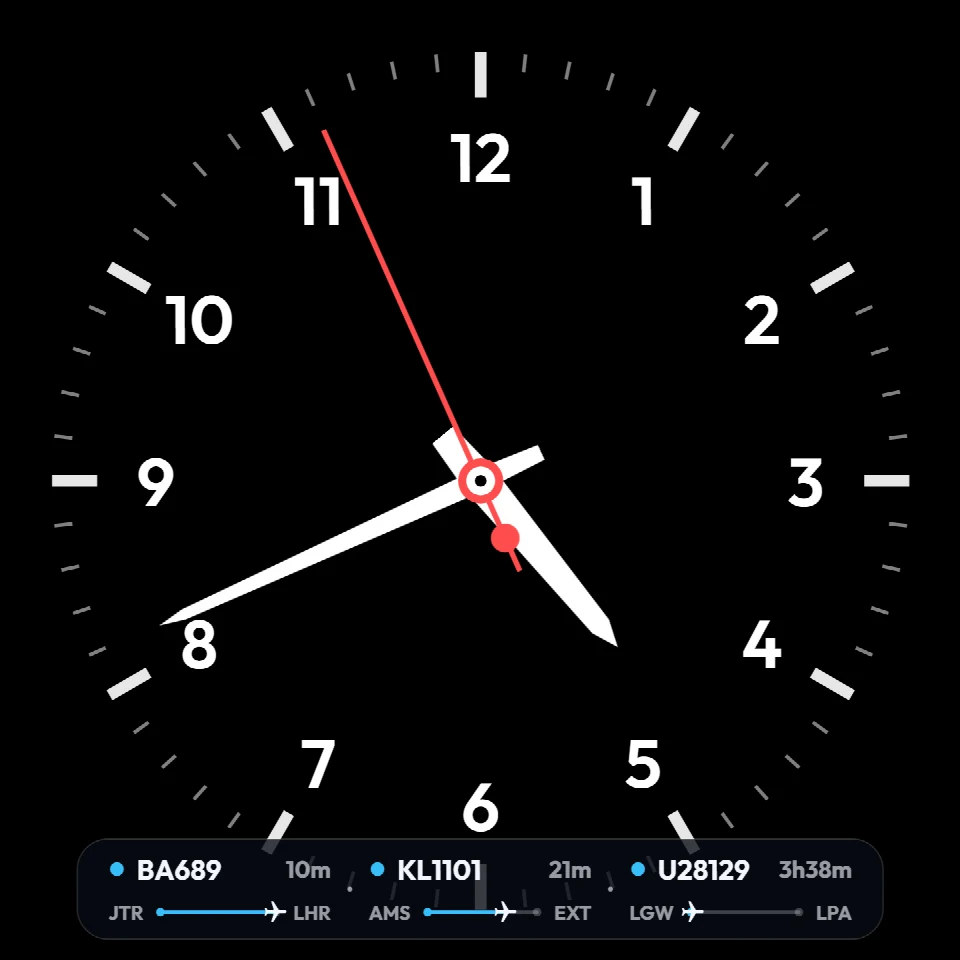
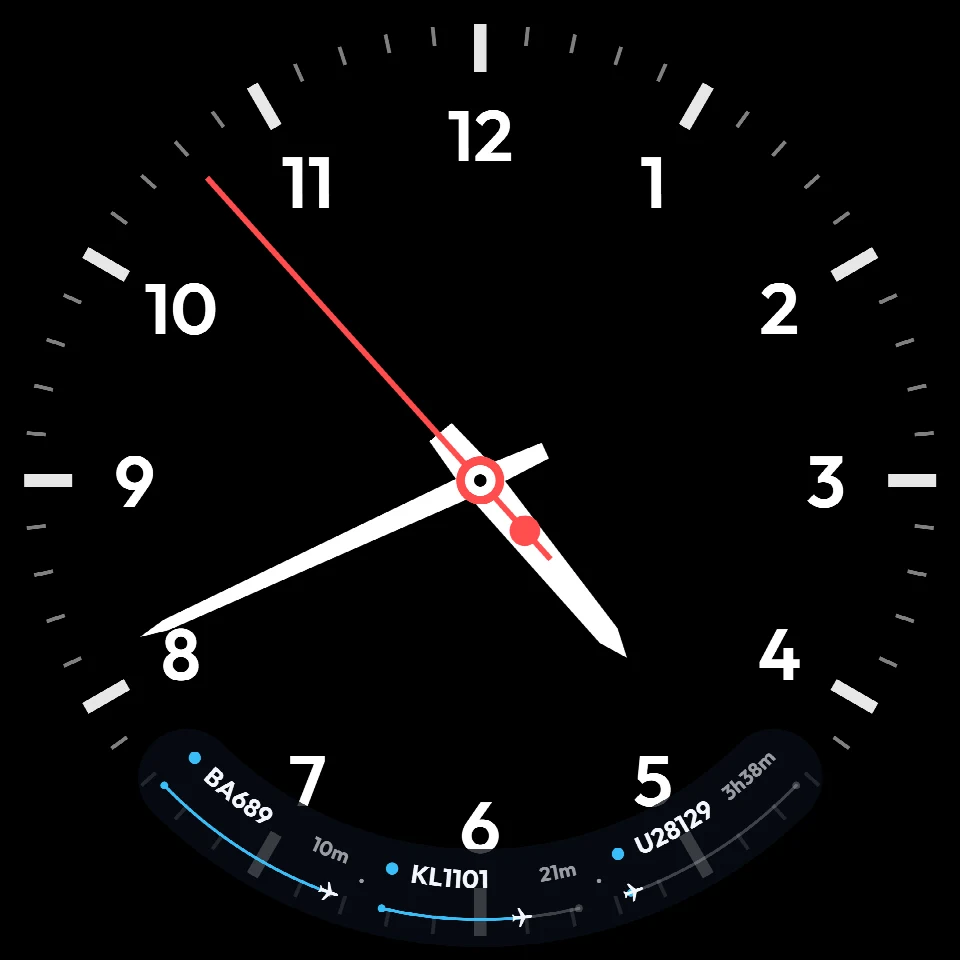
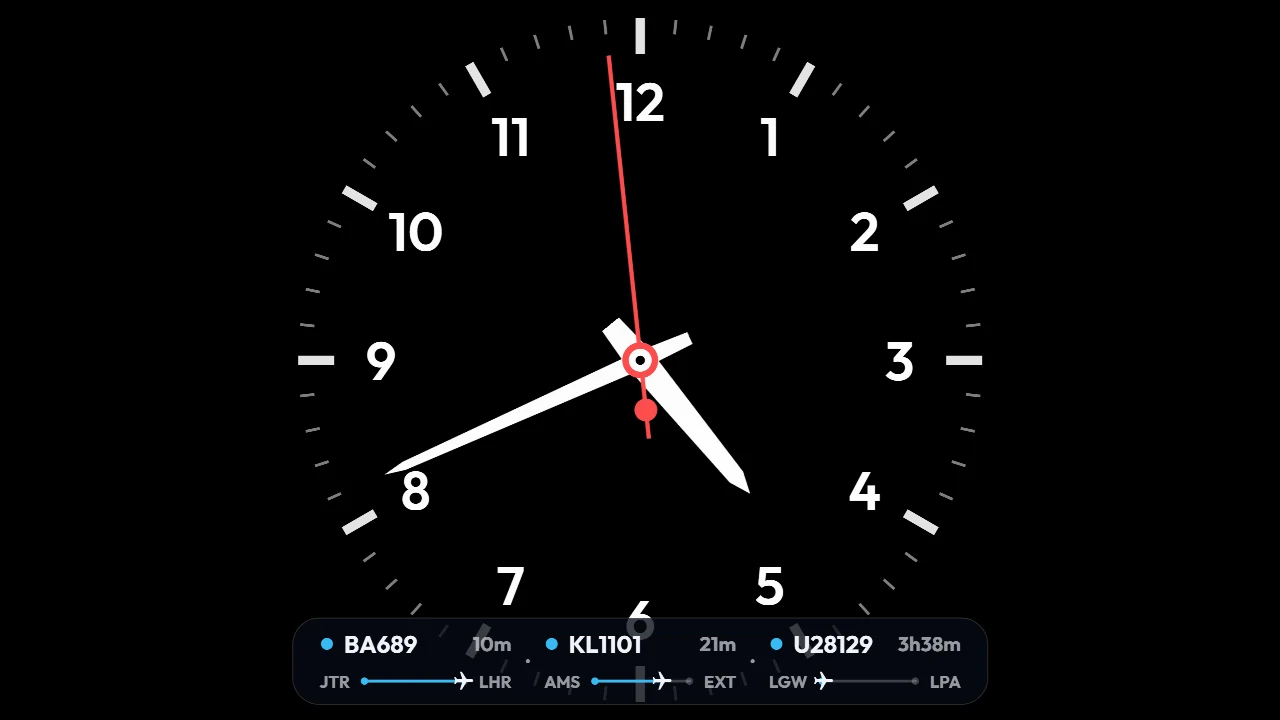
The flights you follow, along the bottom. Each one shows its flight number, time left, and a progress line from origin to destination, so you can see BA689 is ten minutes from Heathrow without leaving the face. Add up to three flights under Flights. Tap the bar to open the full tracker.
Alerts
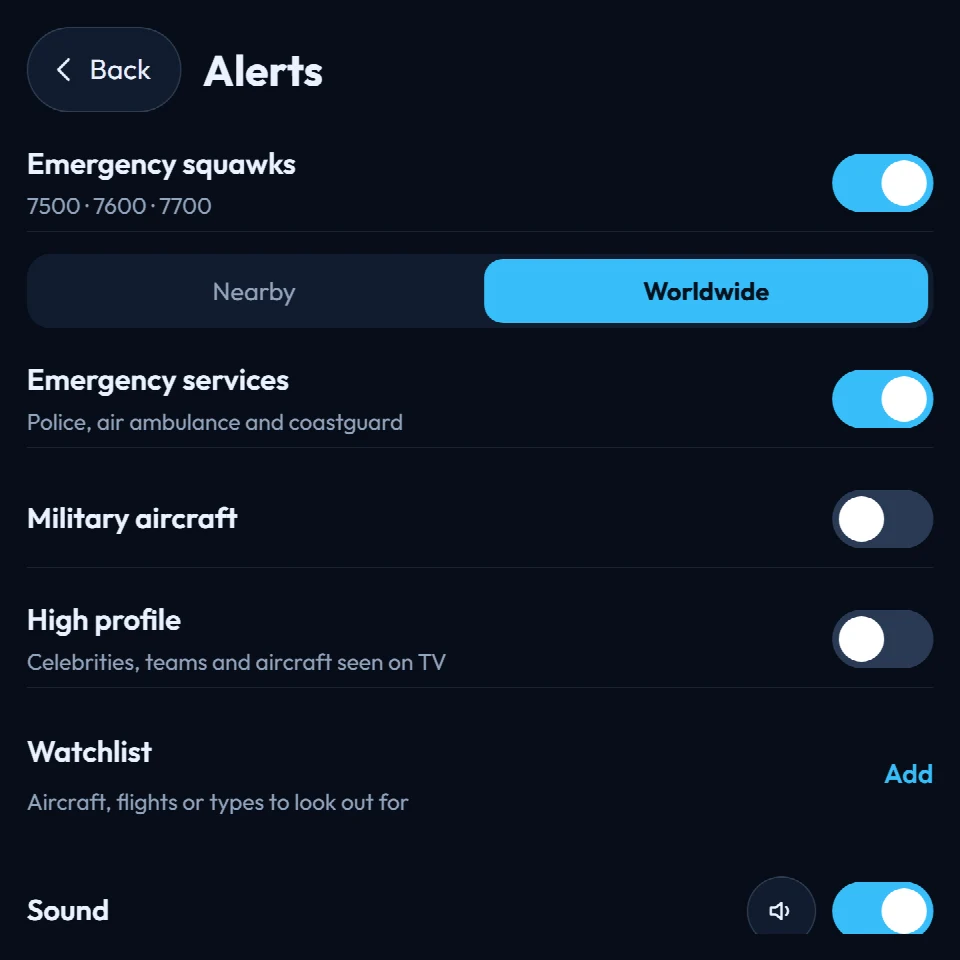
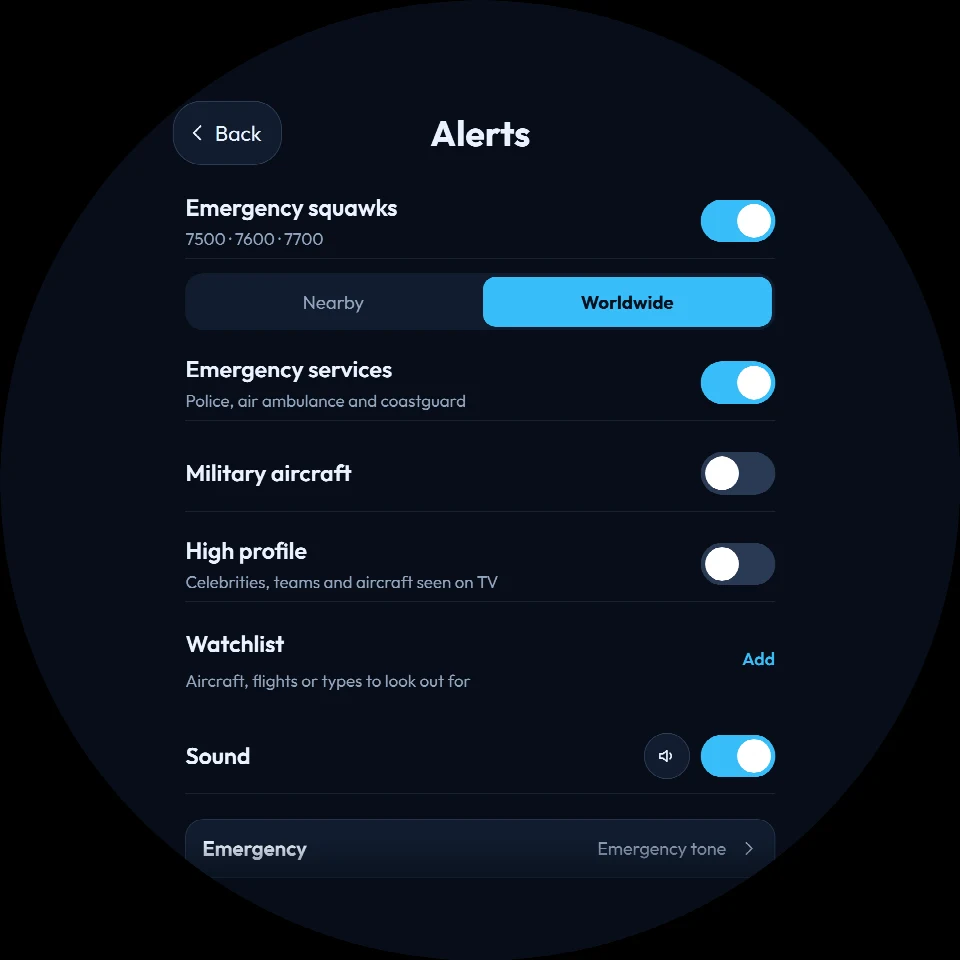
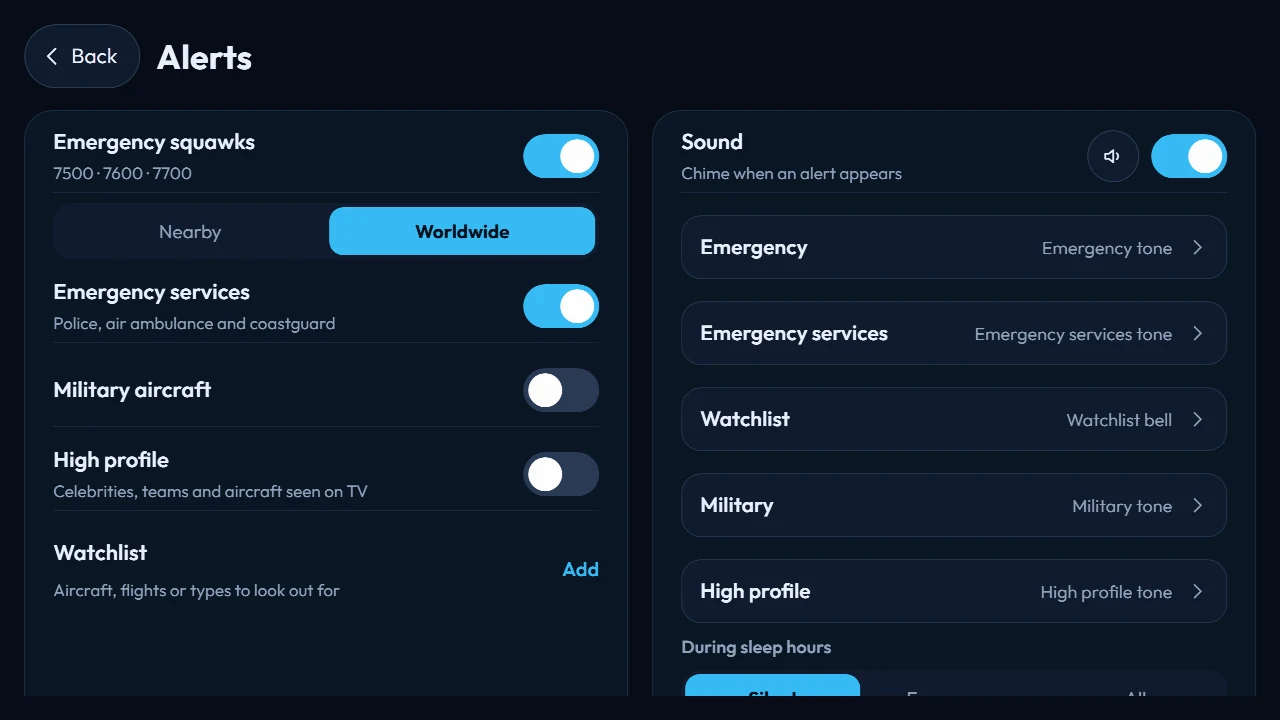
Switch on the ones you care about: emergencies, emergency services (police, air ambulance, coastguard), military aircraft, and high-profile flights. A watchlist is there for the registrations, flights, or aircraft types you want to keep an eye on.
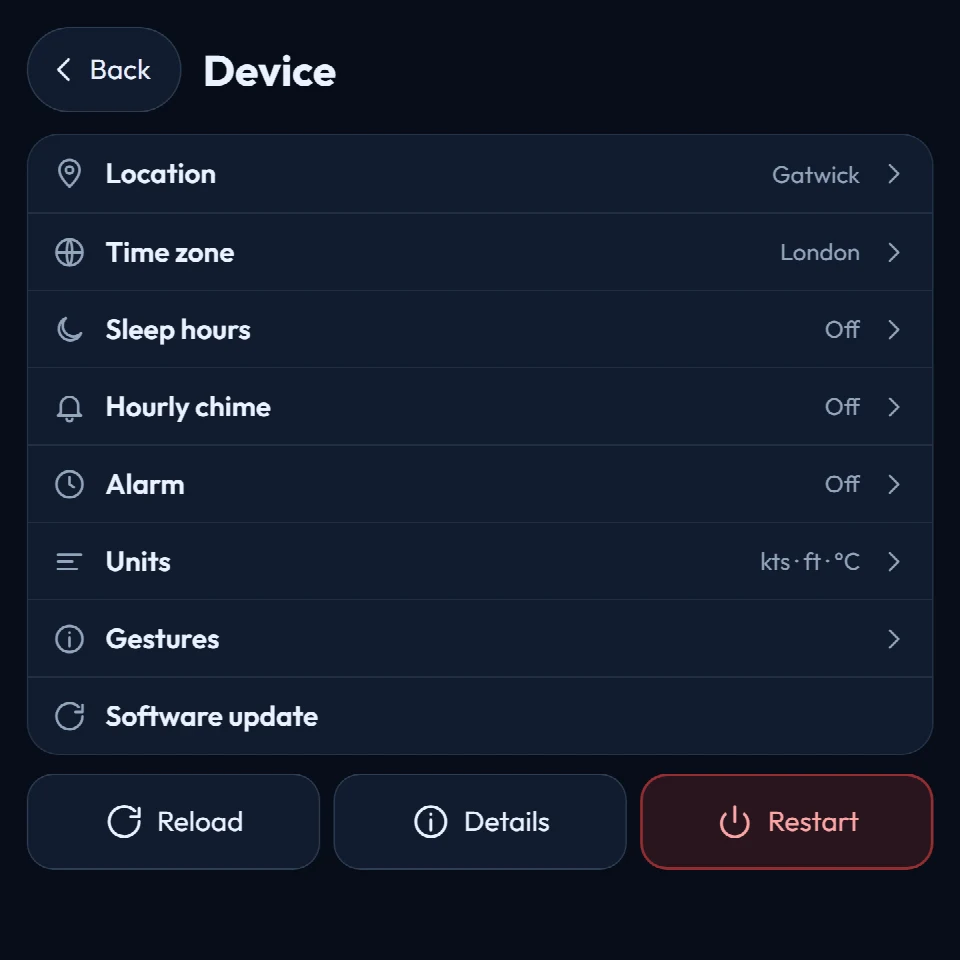
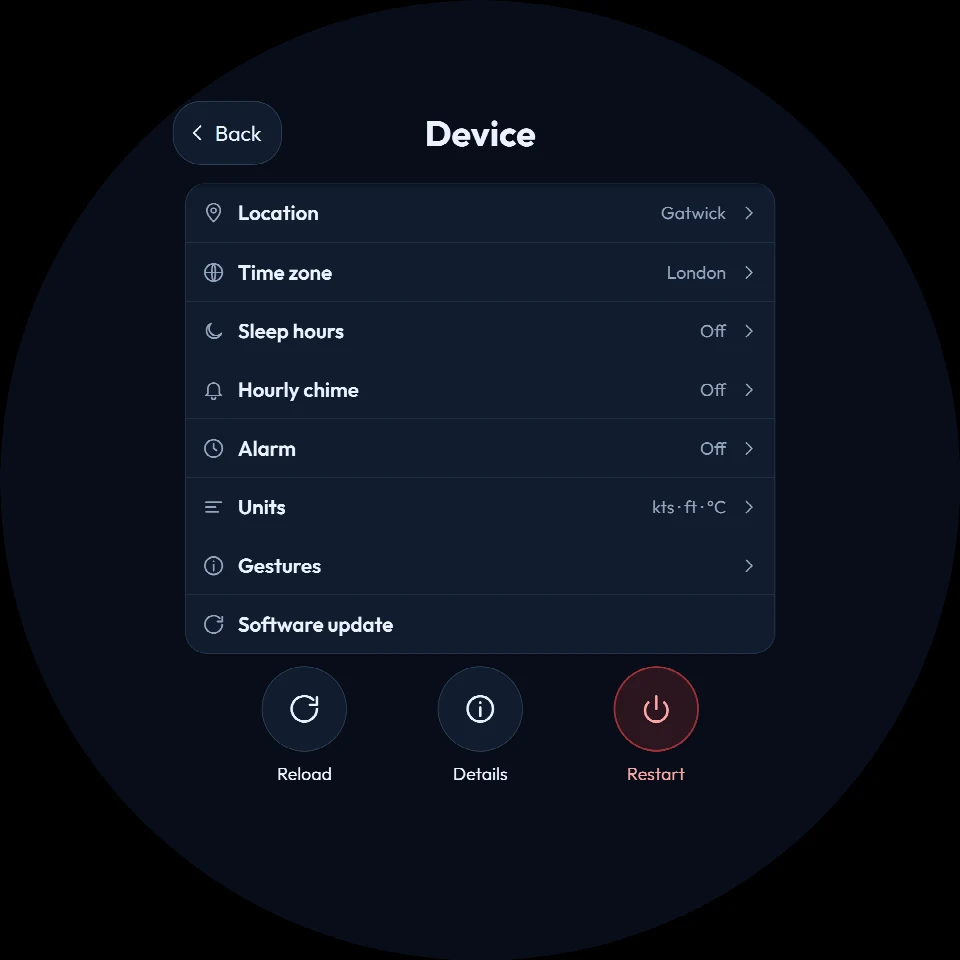
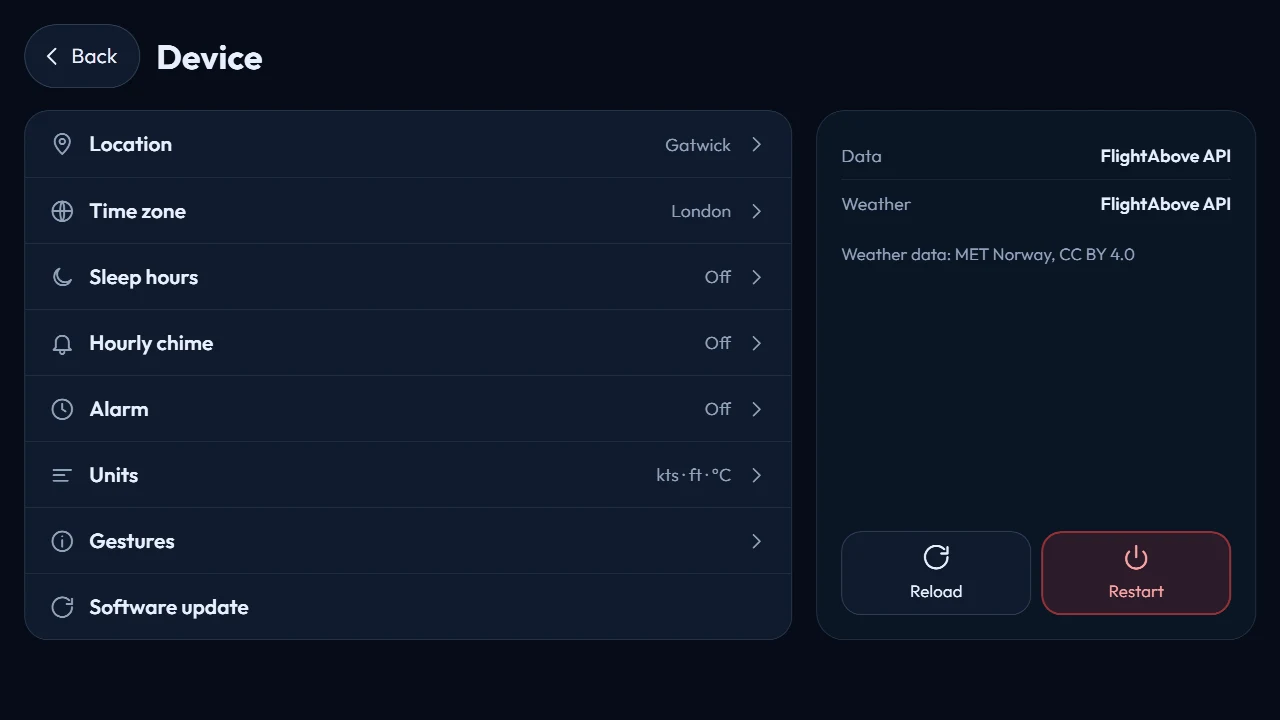
Device
Three ways to set it
The screen, the web dashboard and the apps all set the same device. Change something in one and the others keep up.
Now
Press and hold Mini, Altitude or Horizon. On Connect, use a mouse. The everyday things are one click away, and you see each change as you make it.
Now
Every setting in any browser, including themes, data bays and Active Hours. Handy when you are away from home.
Open the dashboardComing soon
FlightAbove apps for iPhone and Android phones are on the way. Until then, the web dashboard works in your phone's browser.
Who it is for
Nothing here asks you to be technical. Big buttons, plain labels, and a change you can see the moment you make it.
Aviation
A gift
Before you touch it
Press and hold the screen, or double-tap if you prefer that. The controls open on top of what is already showing. No phone, laptop or extra app needed.
No. Change something and it saves on its own. Tap Back when you are done, or just leave it. After a minute of quiet the main screen comes back by itself.
Swipe left or right to change the face. Swipe in from the right edge to change how far away flights are picked up. Tap an alert to follow that aircraft. Tap the flight tracker bar to open the tracker.
Yes. Software 2 adds mouse input on Connect. Click the screen to open the same controls as a press and hold on Mini, Altitude or Horizon. The web dashboard still sets Connect as well.
Yes. The screen and the FlightAbove web dashboard set the same device, so use whichever is closer. iOS and Android apps are coming soon.
Yes. Turn the screen off and tap it to wake it again, or set sleep hours so it rests overnight fully off, dimmed, or still showing the time.
Yes. Under Device you can join a network, password and all. If the connection drops, an Offline notice on the screen opens that page for you.
Yes. Pair a Bluetooth speaker under Device if you want alerts and chimes somewhere other than the device itself.
Yes. Add up to three flights by flight number, callsign or registration under Flights, and each one stays on every face until you take it off. After landing it can drop off after a few minutes, or stay until you say so.
Two slim bars that sit over any face. The HUD runs across the top with the time, date, weather, wind, a nearby airport, humidity, the moon or aircraft in range. The Tracker HUD runs along the bottom with up to three followed flights, their route and time left.
No. Big buttons, plain labels, and a change you can see the moment you make it. Each menu is a short list, not a maze.
More to explore: Customising · Data bays · LED Wall · Ask us
Press and hold
Faces, flights, alerts and device settings on the screen itself. The web dashboard for everything else. Hardware paid for once.
From £99.00 on hardware